Healthy Digital Habits Start at Home
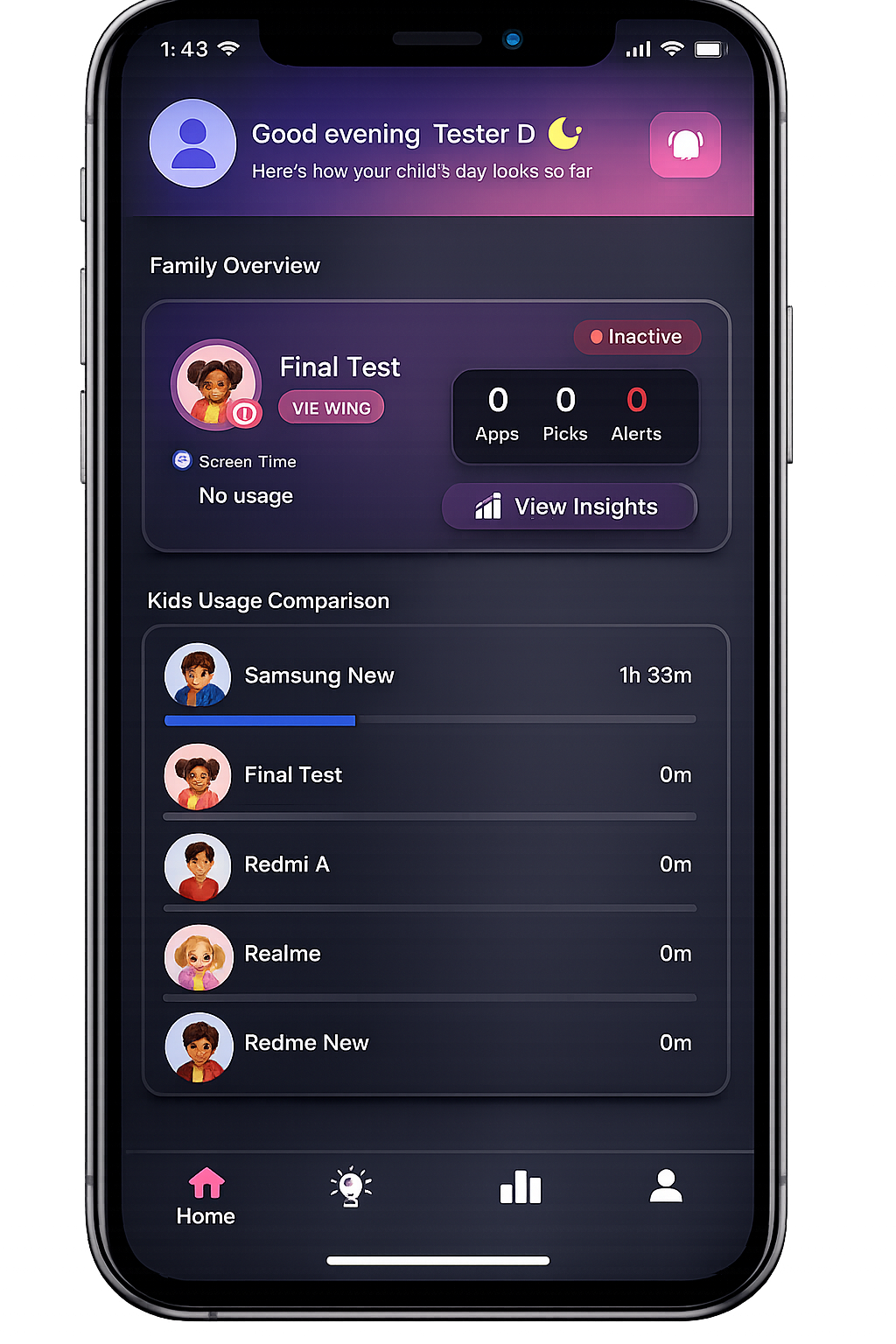
iLimits helps families manage screen time with clear limits, structured categories, and parent-controlled restrictions — without the stress.
+
Satisfied user
/5
Client Rating
%
Secure
About iLimits

Parent-first design
Parent-first controls for healthier screen habits.

Privacy focused
Protecting your family’s digital space.

No ads, ever
Zero ads. Pure focus.

Simple & transparent
Clear, easy-to-use parental management.
Healthy Digital Habits Start at Home
At iLimits, we help families build healthier digital habits with simple and smart parental controls.
Our goal is to give parents an easy way to manage screen time, block unwanted apps, and create a safer digital experience for children.
As mobile devices become part of daily life, parents need reliable tools to stay informed and in control. iLimits provides screen time limits, app blocking, usage monitoring, category restrictions, and secure parent controls — all designed to keep technology simple and stress-free for families.
Our Features
Powerful Tools for Healthy Digital Habits
Everything parents need to create a safer, balanced, and responsible digital environment for children.
Restricted App Blocking
Automatically detect and restrict selected or unsafe apps to create a safer digital environment for children.
App Blocking
Block specific apps instantly and prevent access during restricted hours or screen time limits.
Category Limits
Set limits for social media, gaming, entertainment, and other distracting app categories.
Global Screen Time Limits
Apply overall daily device usage limits to encourage healthier and balanced screen habits.
Individual App Limits
Set custom time limits for specific apps based on your child’s usage needs.
Smart Usage Monitoring
Track app activity and screen time usage with detailed monitoring tools and insights.
Parent & Child Modes
Separate parent and child experiences with secure parental access and controlled child usage.
Secure PIN Protection
Protect parental settings and restrictions using a secure PIN system.
Family-Friendly Controls
Simple and effective parental tools designed for modern families and responsible digital wellbeing.
We Focus On
Our goal is to create family-friendly technology that helps parents manage digital life with confidence.
iLimits is built for safe parental supervision and responsible device management for families.
-
Digital wellbeing for families
-
Safer device usage for children
-
Healthy screen time habits
-
Simple and smart parental controls.
-
Privacy and security-first experiences

Applications
0+

Screen Time
0+ hrs
Download App
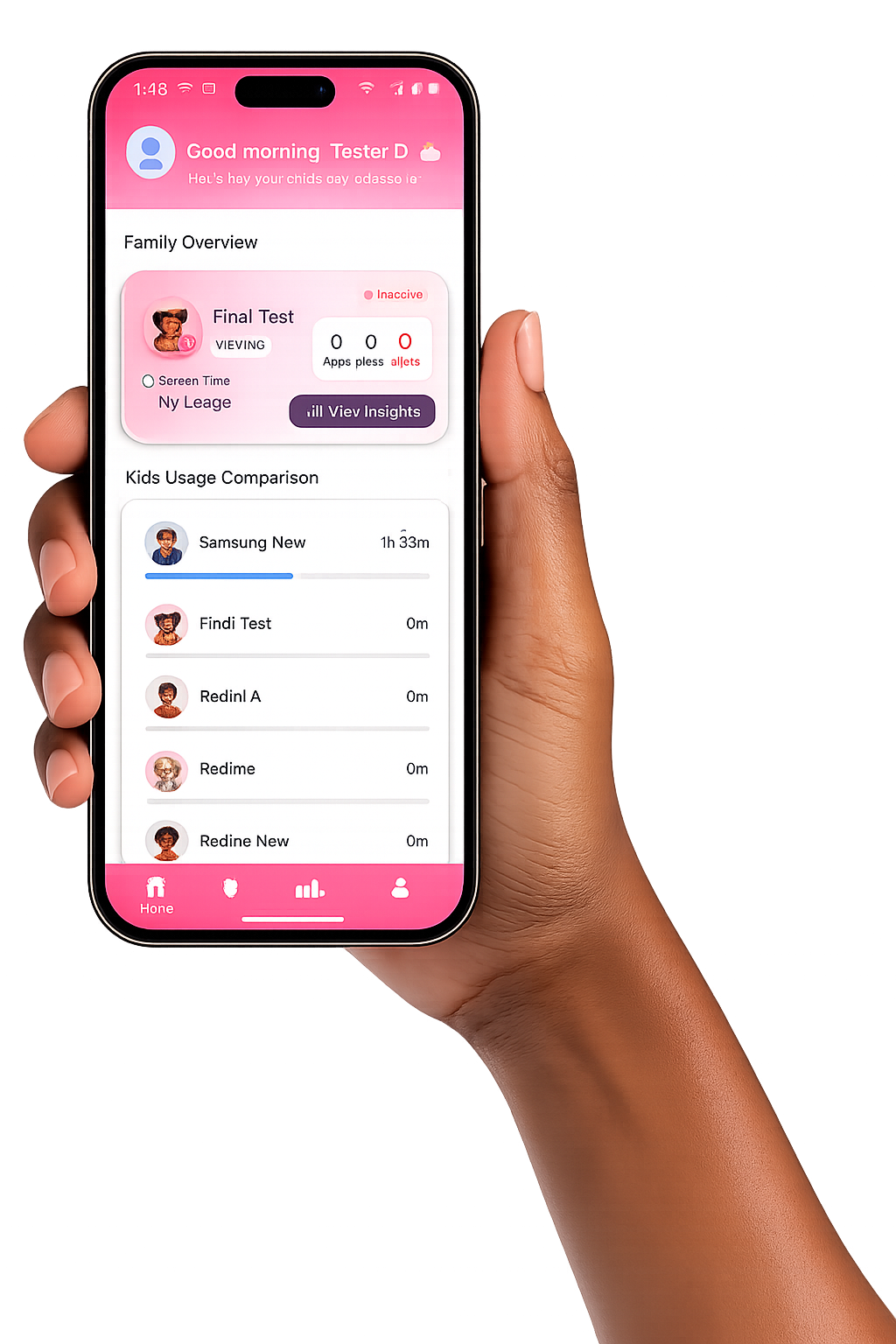
Manage Your Child’s Screen Time Anywhere
Download iLimits and help your family build healthier digital habits with smart parental controls, app blocking, and screen time management tools — all from your mobile device.
DOWNLOAD THE APP


FAQ
Frequently Asked Questions
Linking a child's device to your parent account is a straightforward process. You'll need brief access to both the parent device and the child's device to complete the setup.
Once linked, the child device will appear in your parent dashboard and your configured limits and rules will begin applying immediately.
You can link multiple child devices from a single parent account. Each device can have its own individual rules, schedules, and limits.
iLimits uses Android's Accessibility Service because it is the only reliable way for an app to detect which application is currently active on a device and act on it in real time.
This permission is used exclusively to:
- ✓ Detect which app is currently open or in the foreground
- ✓ Enforce screen time limits by prompting the user when a limit is reached
- ✓ Block access to restricted or blocked apps as configured by the parent
iLimits does not read screen content, capture keystrokes, record messages, access photos, or monitor any personal communications. Accessibility access is strictly limited to enforcing the parental controls you set.
Without this permission, iLimits cannot enforce app blocking or screen time limits. It is a required permission for the core functionality of the app to work correctly.
iLimits gives you two flexible ways to manage access — you can block individual apps, or apply controls to entire categories at once.
Blocking individual apps:
- 1 Open the iLimits parent app and go to App Management
- 2 Browse or search for the app you want to block
- 3 Toggle the app to Blocked — it takes effect immediately
Blocking by category:
- 1 Go to Categories in the parent app
- 2 Select the category (e.g. Games, Social, Gambling)
- 3 Toggle the entire category to Blocked or set a time limit
Category-based blocking is the most efficient way to manage access. Instead of blocking apps one by one, a single toggle applies rules to all apps in that category simultaneously.
You can also create custom categories to group apps in ways that match your family's rules — for example, grouping all homework tools into an "Education" category with a minimum daily usage requirement.
iLimits lets you set flexible daily usage limits and automatic device schedules for each linked child device.
Setting a daily screen time limit:
- 1 Open the parent app and select the child device
- 2 Tap Screen Time Limits
- 3 Set a daily time budget (e.g. 2 hours)
- 4 Optionally customise limits per day of the week
Setting a device schedule:
- 1 Go to Schedules in the child device settings
- 2 Define time blocks when the device should be restricted (e.g. school hours, bedtime)
- 3 Save the schedule — restrictions apply automatically
You can set different limits for school days and weekends. For example, a stricter 1-hour limit on weekdays and a more relaxed 3-hour limit on Saturdays and Sundays.
iLimits uses an optional Device Administrator permission to prevent children from easily uninstalling the app without parental knowledge. If this permission is active, you must deactivate it first before the app can be removed.
If you attempt to uninstall iLimits without first removing Device Admin permission, Android will block the uninstallation. This is intentional and protects the integrity of your parental controls.
To uninstall iLimits:
- 1 Open the parent iLimits app on the child device (requires parent PIN)
- 2 Go to Settings → Device Admin
- 3 Tap Deactivate Device Admin and confirm with your parent PIN
- 4 You can now uninstall iLimits via your device's standard app settings
Alternatively, go to your device's Settings → Security → Device Admin Apps, deactivate iLimits, and then uninstall normally.
Yes — iLimits supports automatic bedtime and focus schedules that restrict device access during specific hours without you needing to manually intervene each day.
- 1 Open the parent app and select the child device
- 2 Tap Schedules → Add Schedule
- 3 Choose a type: Bedtime, School Hours, or Custom
- 4 Set the start and end times and select which days apply
- 5 Save — restrictions will activate automatically
During a scheduled restriction, the device screen is locked or limited to approved apps only. You can set exceptions — for example allowing certain educational apps during school hours even when social and gaming apps are blocked.
Restricted categories are special app groupings — such as Gambling, Adult Content, or Betting — that iLimits flags as high-risk for children. These categories are pre-configured based on the type of content or financial risk the apps present.
As a parent, you can view the restricted categories list and choose to block all apps in a restricted category with a single toggle. iLimits also provides educational information about why certain apps in these categories may be harmful, helping you have informed conversations with your child.
iLimits never automatically blocks apps without your explicit action. Restricted categories are flagged to inform you — the decision to block always remains yours as the parent.
You can access restricted category information from Categories → Restricted in the parent app.
You can delete your iLimits account and all associated data at any time. Account deletion is permanent and removes all parent account data, child profiles, screen time history, and device configurations.
Option 1 — Inside the app: Go to Settings → Account → Delete Account and confirm your choice.
Option 2 — By email: Send a deletion request from your registered email address to support@ilimits.app with the subject line "Account Deletion Request".
For full details on what data gets deleted and how the process works, visit our Account & Data Deletion page.